
Building 3D Models Cheaper & Faster Using AI (Codex) and Python (Build123d)
Blender MCP tools are powerful for generating 3D models but can be heavy and token-expensive. Here is how I set up Build123d with Codex to build 3D models cheaper, faster, and view them directly in VS Code.
Building 3D Models Cheaper & Faster Using AI (Codex) and Python (Build123d)
💡 Disclaimer: I am neither a 3D artist nor a mechanical engineer, but I am passionate about building anything, be it software, hardware, or anything in between.
We all know or at least have heard about Blender MCP server, and how Claude Code is building people's crazy imagination into 3D models using Blender. While really powerful and cool, it requires setting up Blender, which can be a bit heavy, then the MCP server connecting the Claude Code to Blender will burn a huge amount of tokens for each iteration. Due to its massive Python API (bpy), it dumps a massive amount of data as context for the LLM. Therefore, this can make it expensive and slow for building simple 3D models. Nobody wants to spend 10000 YEN (60 USD) and 30 minutes to design a simple DIY phone stand. Right?
Meet Build123d
Build123d is a Python library for programmatic CAD, born out of the open-source CadQuery community. It is designed to make it easy to create 3D models using Python. It is a modern, powerful, and highly flexible library that can be used to create a wide variety of complex, parametric 3D models.
It is popular for:
- Creating precise, parametric 3D/2D models for 3D printing, CNC machining, and laser cutting using Python code.
- Automating repetitive CAD design workflows and generating complex geometric shapes through programmatic loops and logic.
Why Build123d with AI (Codex/GPT) and not with Blender MCP tools?
- No need to set up a heavy software like Blender.
- Only need Python environment and Build123d library.
- The LLM needs very little context to generate the code.
- Much faster and cheaper than using Blender MCP tools.
- 3D models can be viewed directly inside VS Code using the OCP CAD Viewer extension.
The Codex Build123d Setup
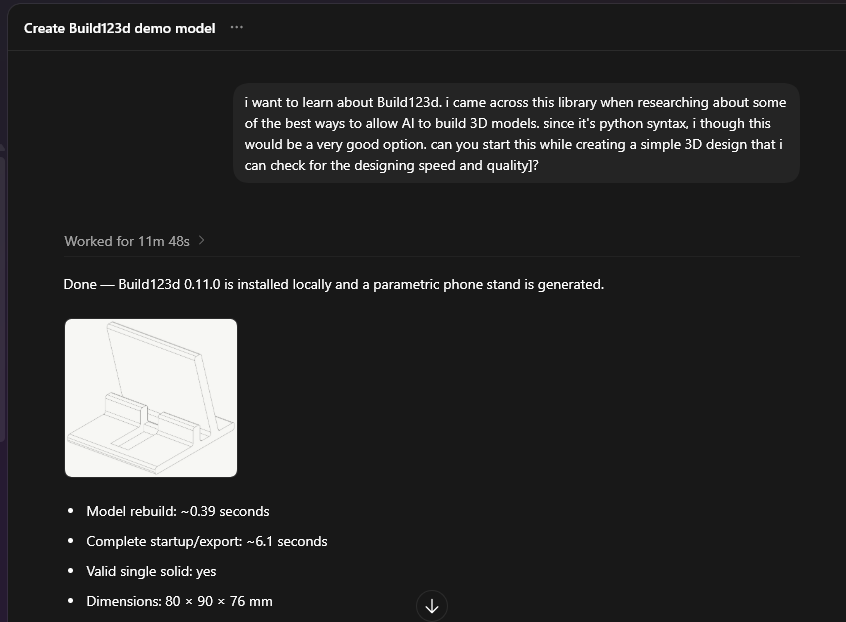
It's as simple as telling it to setup the build123d environment for you. Like I did:
💬 Prompt: "i want to learn about Build123d. i came across this library when researching about some of the best ways to allow AI to build 3D models. since it's python syntax, i though this would be a very good option. can you start this while creating a simple 3D design that i can check for the designing speed and quality]?"
Excuse my typos and dumb prompt. I was really out of coffee then :\
Done. In my case, it designed a phone stand I still cannot figure out how it's supposed to hold a phone lol.
My First AI Generated 3D Model in 3 Minutes
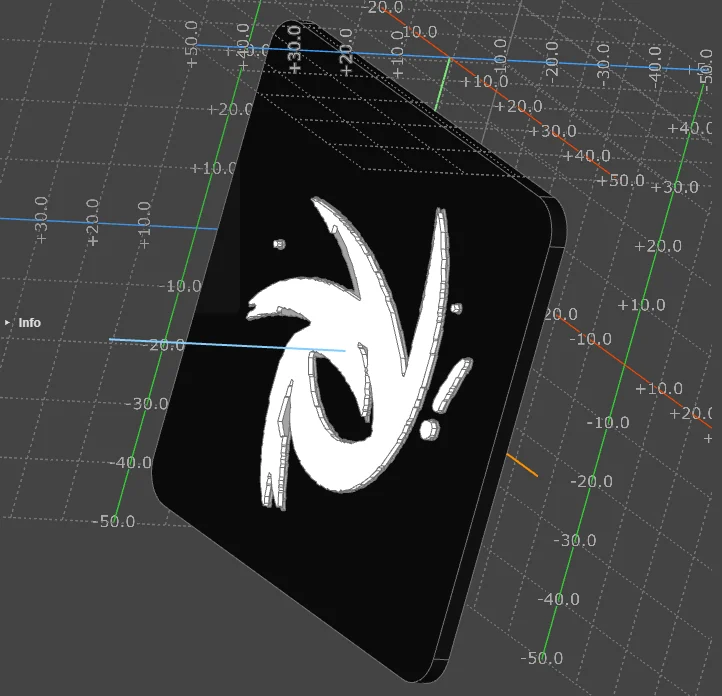
I started with a simple prompt:
💬 Prompt: "i want you to build me a 3D model using the build1234 for this image: logo-static.png"
First Iteration
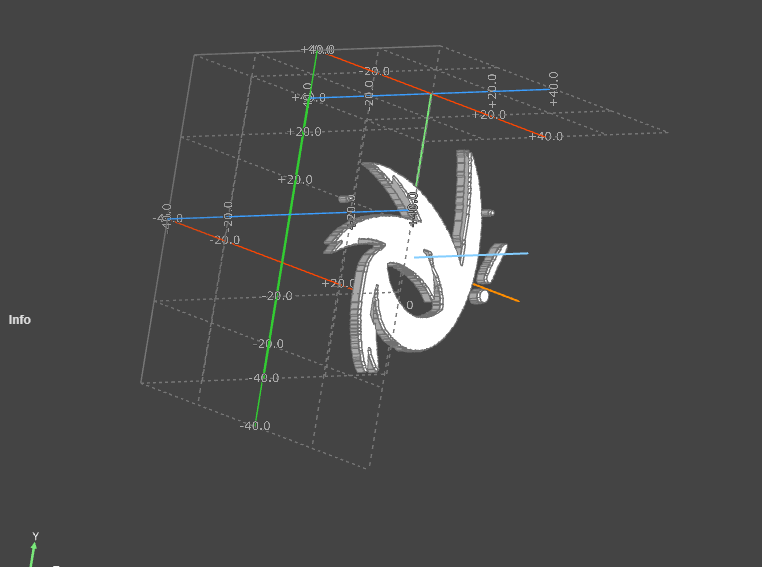
Second Iteration
💬 Prompt: "nice. can you smoothen the sides of the logo? also, i dont want the black background. it should be like in it's own shape"
Exporting, 3D Printing & More
After being satisfied with the 3D model, you can export it to various formats like STL, STEP, etc. or directly 3D print it. In my case I don't have a 3D printer yet so I just leave it at that. In the future, maybe I will design and build my own merch like this Phone Case ;)
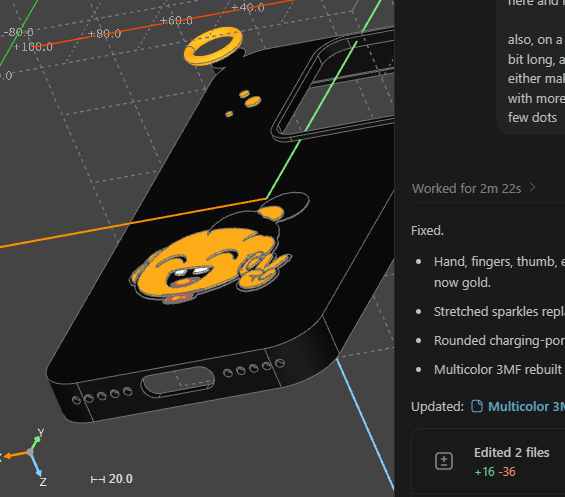
I will be experimenting and learning more about 3D designing and modeling in the coming months and will keep you posted. Wish me luck!
👏Enjoyed this article?
Drop some claps if you found this article helpful.
From the archive
More writings
Jul 7, 20265 min read
My Job Application Workflow: Keeping the Human Touch
Sep 3, 20267 min read
The Native Renaissance: Why AI Agents Might End the Cross-Platform Compromise
Aug 31, 20267 min read